
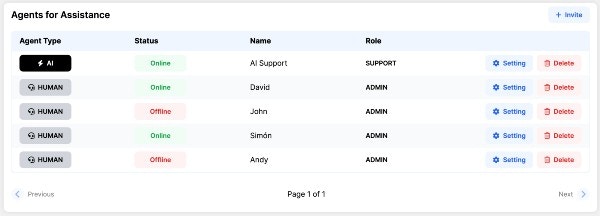
💌 1. Inviting Human Agents
Adding real people to your team is a breeze. Just click to invite a new user, enter their email address, and they’ll receive a magical link to set up their account.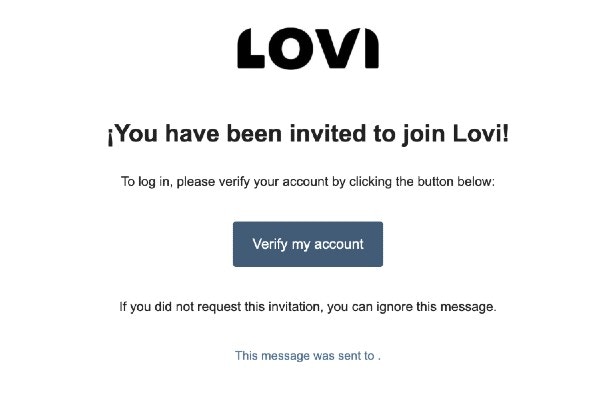
🔐 2. Roles and AI Assignments (Who sees what?)
Not everyone needs access to everything. We use a smart permission system based on Roles and AI Agent Assignments to keep your workspace secure and organised. Think of your platform as an office building. 🏢- 👑 Superadmin: The owner of the building. They hold the master keys and have full, unrestricted access to the entire company’s platform, every bot, and every setting.
- 🛡️ Admin, Supervisor, or Support: The department managers and staff. They MUST be assigned to at least one AI Agent.
💡 Example: Let’s say you invite an Admin and assign them only to the AI agent named “Lovi Support”. When they log in, they will only see the metrics, Livechat conversations, and configurations belonging to “Lovi Support”. The “Sales Bot” will be completely invisible to them!
⚙️ 3. Human Agent Configuration (Fine-tuning)
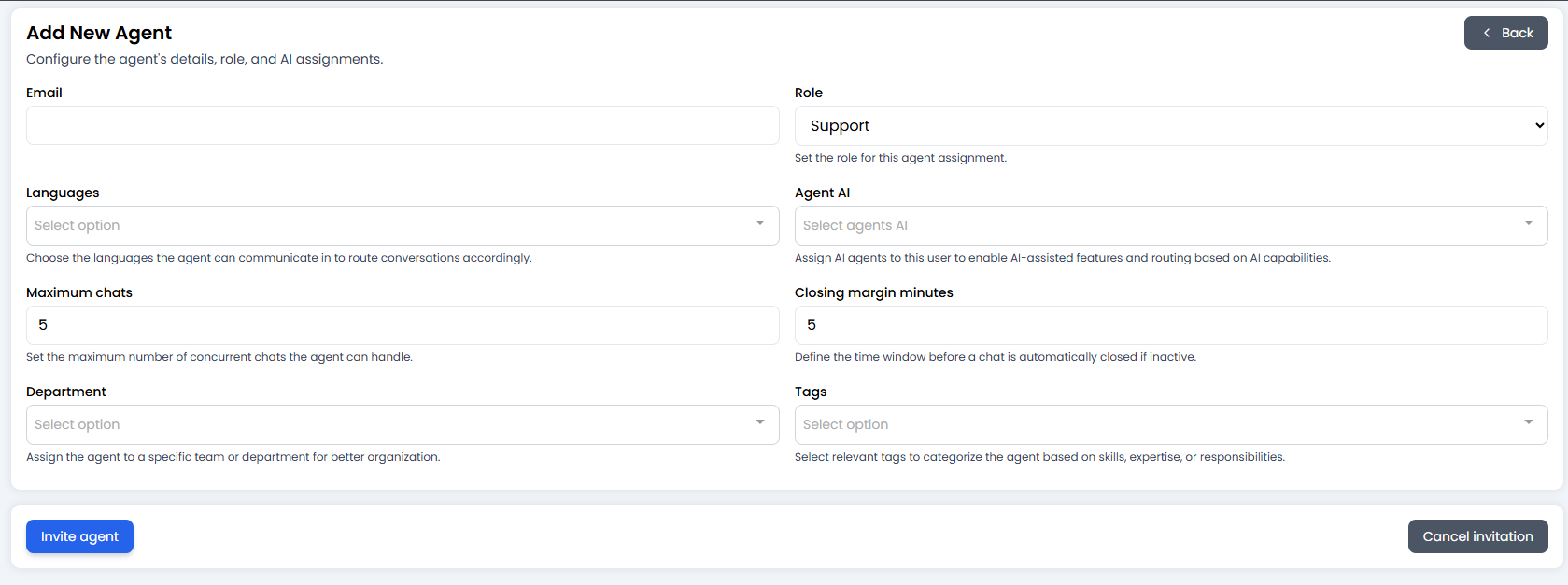
- 🤖 AI Agent Assignment: (Crucial!) Select which bots this person is allowed to manage and view.
- 👥 Group Name: Assign them to a specific department (e.g., Tech Support, Billing). They will only receive chats routed to this group.
- 🚦 Maximum Chats (Anti-burnout): What is this person’s capacity? If you set it to
3, the system won’t assign a 4th simultaneous chat until they finish one of their active conversations. 🧘 - ⏳ Closing Margin Minutes: Perfect for shift workers! If you have business hours set up (say, finishing at 17:00), and you set a 5-minute margin, the system will stop giving them new chats at 16:55 so they can wrap up and log off on time.
- 🌍 Languages: Do they speak French? Spanish? Tag the languages they master so they only receive chats they can actually understand and reply to.
🎓 Best Practice Summary (Cheat Sheet)
- Protect the Superadmin role: Only give this top-tier role to people who absolutely need to see the entire company’s billing, global settings, and every single bot.
- Mix and match: A single
Supportagent can be assigned to both the “WhatsApp Support Bot” and the “Website Help Bot” if they handle multiple channels. - Protect their time: Always set a realistic Maximum chats limit. A human trying to answer 10 people at once is a recipe for angry customers.
🆘 Quick Troubleshooting
Get your team invited, assign their bots, and let the conversations begin! 💬🚀