
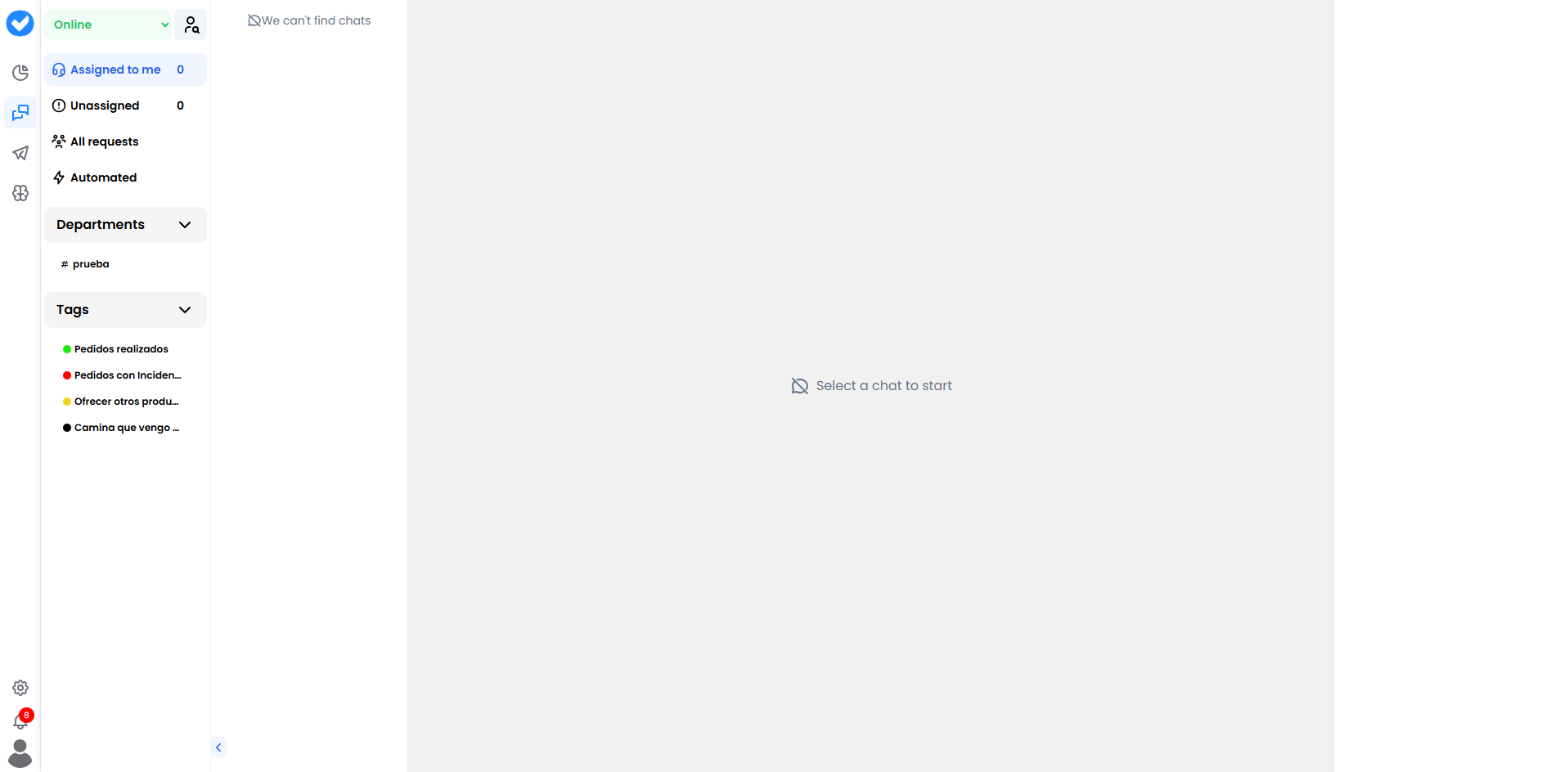
- Monitor: Watch how the AI replies (spy mode 🕵️).
- Intervene: Take manual control if the customer asks for a human or the AI gets stuck.
- Manage: Organise tickets by departments and tags.
🚦 Your Status (Are you available?)
At the top left, you’ll see your status. This is not just decorative — it determines whether you receive chats or not.- 🟢 Online: Send me work! The system will automatically assign chats to you (if enabled).
- ☕ Break: A short break. The system stops sending you chats.
- 🎓 Training: You’re on the platform learning or supervising, but not handling customers.
- 🏁 Ending Shift: You only finish what’s already open; no new chats come in.
- 🔴 Offline: Out of service.
🗂️ The Folders (Your workflow)
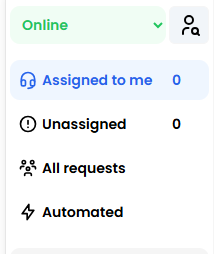
1. 🎧 Assigned to me (My Chats)
These are your responsibility. Conversations you’ve taken manually or that the system has assigned to you. You must reply to and close these cases.2. ⚠️ Unassigned (Waiting Room)
This is where the “orphans” land. These are conversations escalated by the AI (it said “I need a human”), but no one has picked them up yet.If you see a red number here, grab it quickly — there’s a customer waiting.
3. ⚡ Automated (The AI at work)
Here you’ll see many chats. These are all conversations where the AI is handling things on its own.- What’s this for? Auditing. Check in from time to time to see if your bot is replying correctly.
- Intervention: If you see the bot struggling, you can click “Assign to me” and save the day.
4. 👥 All requests (Admin only)
The “God view”. You see everything happening on the platform, assigned or not.⚙️ How are chats assigned? (Assignment modes)
Depending on your system configuration, chats will reach you in one of two ways:- 🅰️ Automatic mode (Uber-style): If you’re 🟢 Online, the system pushes chats straight to you. You don’t need to do anything — just answer the ping.
- 🅱️ Manual mode (Fishing): Chats stay in Unassigned. You browse, choose one, and click “Assign to me”.
🏷️ Organisation: Tags and Departments
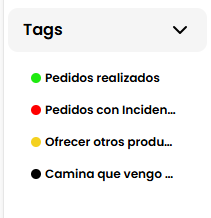
Departments (Routing)
Split conversations by team:#Support, #Sales, #Billing.
- Helps each expert receive only what belongs to them.
Tags (Colour labels)
Visual markers to understand what happened in the chat.- 🔴
Incident: Something went wrong. - 🟢
Order placed: Success. - ⚫
Human: The chat required manual intervention. - Tip: Use them! They’re vital for reporting later and understanding why users contact you.
🎓 Best Practices Summary (Cheat Sheet)
- Don’t be a ghost: If you’re going for lunch, switch to ☕ Break. If you stay Online and leave, customers will wait for a reply that never comes.
- Monitor “Automated”: From time to time, check random chats in the Automated folder to make sure the AI is respecting the Guardrails.
- Use “Assign to me”: If you’re watching an automated chat and things start going south, don’t wait. Assign it to yourself, reply manually and calm the customer. The bot will automatically stop as soon as you type.
- Tag before closing: Before closing a chat, add a Tag. Your future self will thank you when running reports.
🆘 Quick Troubleshooting
Take control! 🎧✈️