🚦 Why do they exist? (The Golden Rule)
There are two ways to talk on WhatsApp:- The user messages you first: Party time! 🎉 Your agent can reply freely (for 24 hours).
- You message the user first: Stop right there! 🛑 You can only do this if you use one of these templates. Meta enforces this to prevent companies from spamming users at scale.
🎛️ Your Collection (What you see on screen)
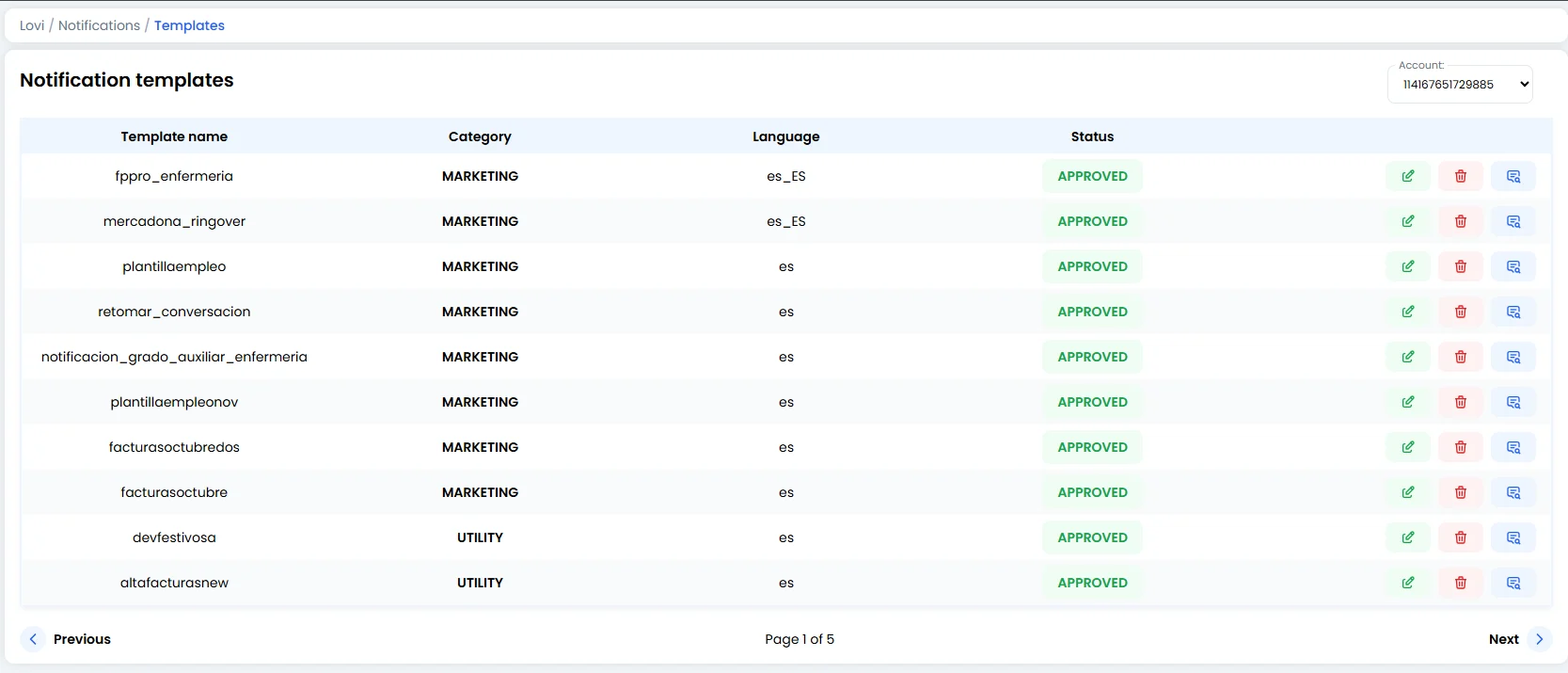
You don’t create templates here (that’s done in “Create template”); here you manage and verify them.1. The Data Table
-
Template Name: The technical name (e.g.
promo_black_friday). - Category: What is this about? (Marketing, Utility, Authentication).
-
Language: Important.
es(general Spanish) is not the same asen(English). Make sure you have the template in your customer’s language. -
Status (The Traffic Light):
- 🟢 APPROVED: Green light! You can use it straight away.
- 🔴 REJECTED: Meta said no. Review their policies (it may have been too promotional or misleading).
- 🟡 PENDING: Meta is reviewing it (this can take from a few minutes up to 24 hours).
2. The Preview (The Blue Icon) 👁️
On the right of each row there’s a message icon. Hover over it or click to see exactly how the real customer will see it.- Does it have an image? Buttons? Do the emojis look right?
- It’s essential to check this before launching a mass campaign.
3. Edit Template (The Pencil Icon) ✏️
Need to tweak a template? Click the pencil icon on the right side of any row to open the editor. You can modify the template content and then save your changes.- Once saved successfully, you’ll see a green “Template updated successfully” confirmation toast at the top of the screen.
- Important: If the template is already APPROVED, editing it may trigger a new review by Meta (the status could temporarily change to PENDING). Plan your edits wisely.
4. Delete Template (The Trash Icon) 🗑️
To remove a template you no longer need, click the trash icon on the right side of the row.- This action is permanent. Once deleted, the template is gone — you cannot undo it.
- If any active campaigns or automations reference that template, they will stop working. Double-check before deleting.
5. Number Selector (Top right)
If you have multiple numbers connected (e.g. Sales and Support), use the dropdown to view the templates for each line. Templates are linked to the number (WABA).🚀 When should you use these templates?
Use them for Proactive Notifications or “Push” messages:- 🛒 Abandoned cart: “Hi Alex, you left this behind…”
- 💳 Payment status: “Your payment has been declined/approved.”
- 🚚 Tracking: “Your order has left the warehouse.”
- 📢 Re-engagement: “We haven’t seen you in a while! Here’s a voucher.”
🎓 Best Practice Summary (Cheat Sheet)
- Correct category: If you try to sneak a sales offer (Marketing) in as an “Account Alert” (Utility), Meta will block the template or even the number. Be honest.
- Variables: Templates usually have placeholders like
Hello {{1}}. Make sure your database has the name (the{{1}}variable) to fill it in. A “Hello [EMPTY]” looks terrible. - Buttons: Templates with buttons (e.g. “View website”, “Cancel order”) have a much higher response rate than plain text.
🆘 Quick Troubleshooting
Keep your templates ready and start the conversation before anyone else! 💬🚀