
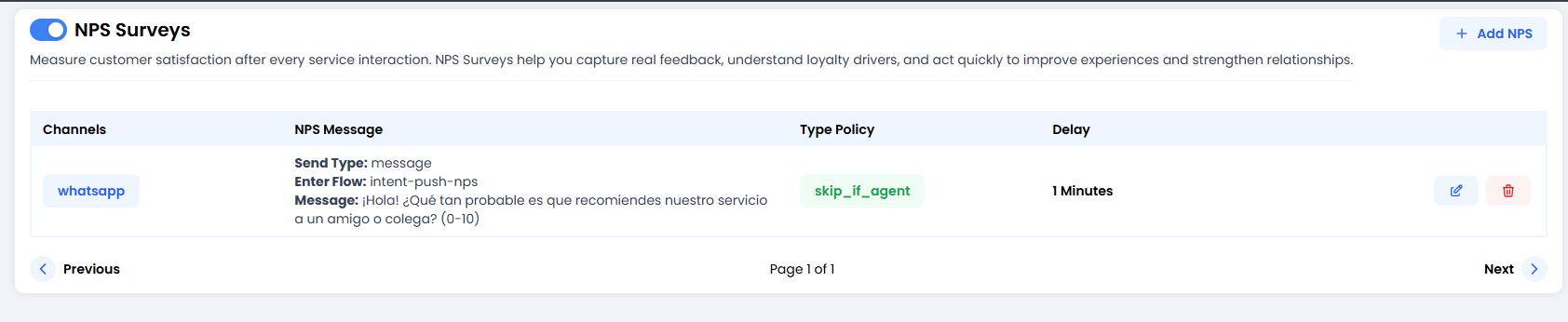
🎛️ The Control Panel (Your Survey List)
You’ll see a list of active survey rules. The most important thing here is the global switch in the top-left corner: NPS Surveys Toggle. If it’s turned off, no one will receive surveys. Each row shows you:- Channels: Where it will be sent (e.g.
whatsapp). - NPS Message: The exact text the customer will see.
- Type Policy: The golden rule (e.g.
skip_if_agent). - Delay: How long the system waits before sending the question.
🛠️ Configuring a New Survey (Edit/Create)
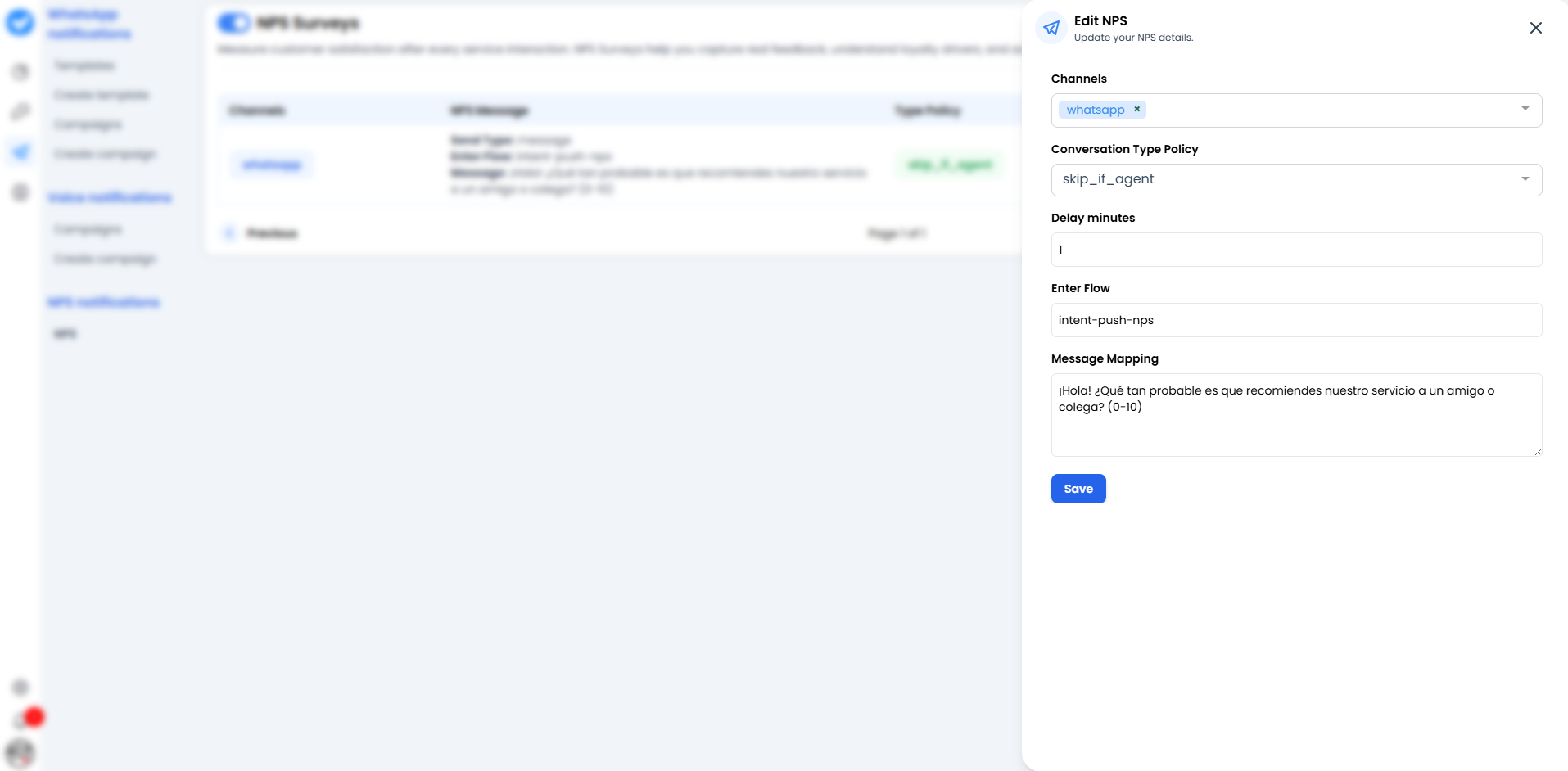
1. Channels 📱
Where do we send this?- Choose the channel (usually
whatsapp). You can have different rules for different channels.
2. Conversation Type Policy 🚦
This is where you define when NOT to send the survey.-
skip_if_agent: This is the most common and smartest option. It means: “If the conversation was ended by a human (a real agent), do NOT send the automatic survey.”- Why? Because the human has probably already said goodbye, or the conversation may have been tense and you don’t want to automatically add fuel to the fire.
- If you leave it empty or configure a different policy, the survey will always be sent.
3. Delay minutes ⏳
The courtesy period.- If you set it to
1, the system will wait 1 minute of complete inactivity after the ticket is closed before sending the question. - Tip: Don’t set it to
0. Give the customer some breathing room.
4. Enter Flow 🔀
This is the technical “event name” that triggers the survey.- By default, it is usually
intent-push-nps. - This tells the agent’s brain: “Switch to survey mode and stop trying to chat normally.”
5. Message Mapping 💬
The sacred text.- Write the question here.
- Example: “Hi! 👋 To help us improve, how likely are you to recommend our service to a friend? (Reply with a number from 0 to 10).”
🚀 How does it work in real life?
- The customer finishes talking to your bot.
- The conversation is marked as “Finished” (or the timeout expires).
- The system waits for the configured
Delay(e.g. 1 minute). - If the
Policyis met (e.g. no human agent intervened), boom! The WhatsApp message is sent. - The customer replies with a number.
- That number is saved in your analytics so you can later show off (or cry) with your boss.