
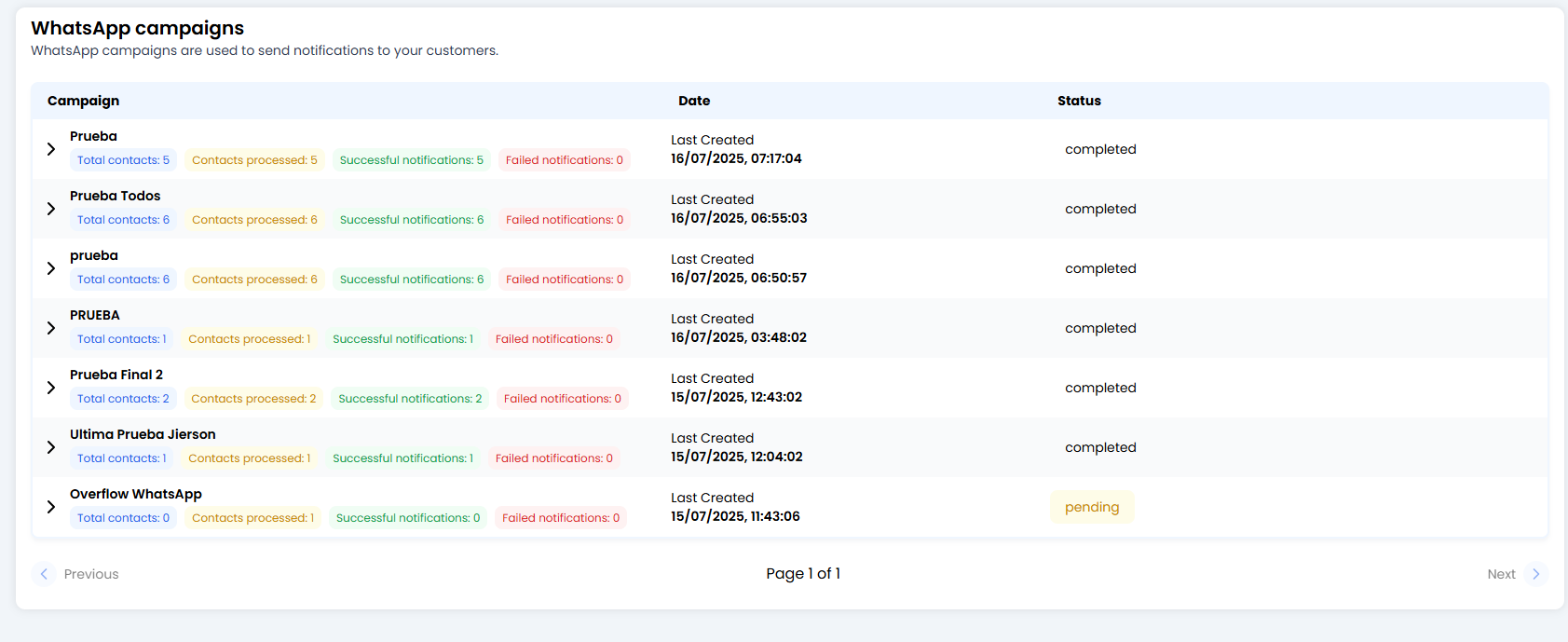
🗂️ Your Campaign Inbox (Overview)
To keep everything organised, the system is smart: it groups campaigns by name.- If you launched a campaign called “Summer Offer” on Monday and another with the same name on Friday, they will appear together in a single folder.
- The main row (the summary): shows the total figures from all the times you have run that campaign.
🔍 The Magnifying Glass: Execution Details
Click the little arrow (>) to the left of the campaign name to expand the history.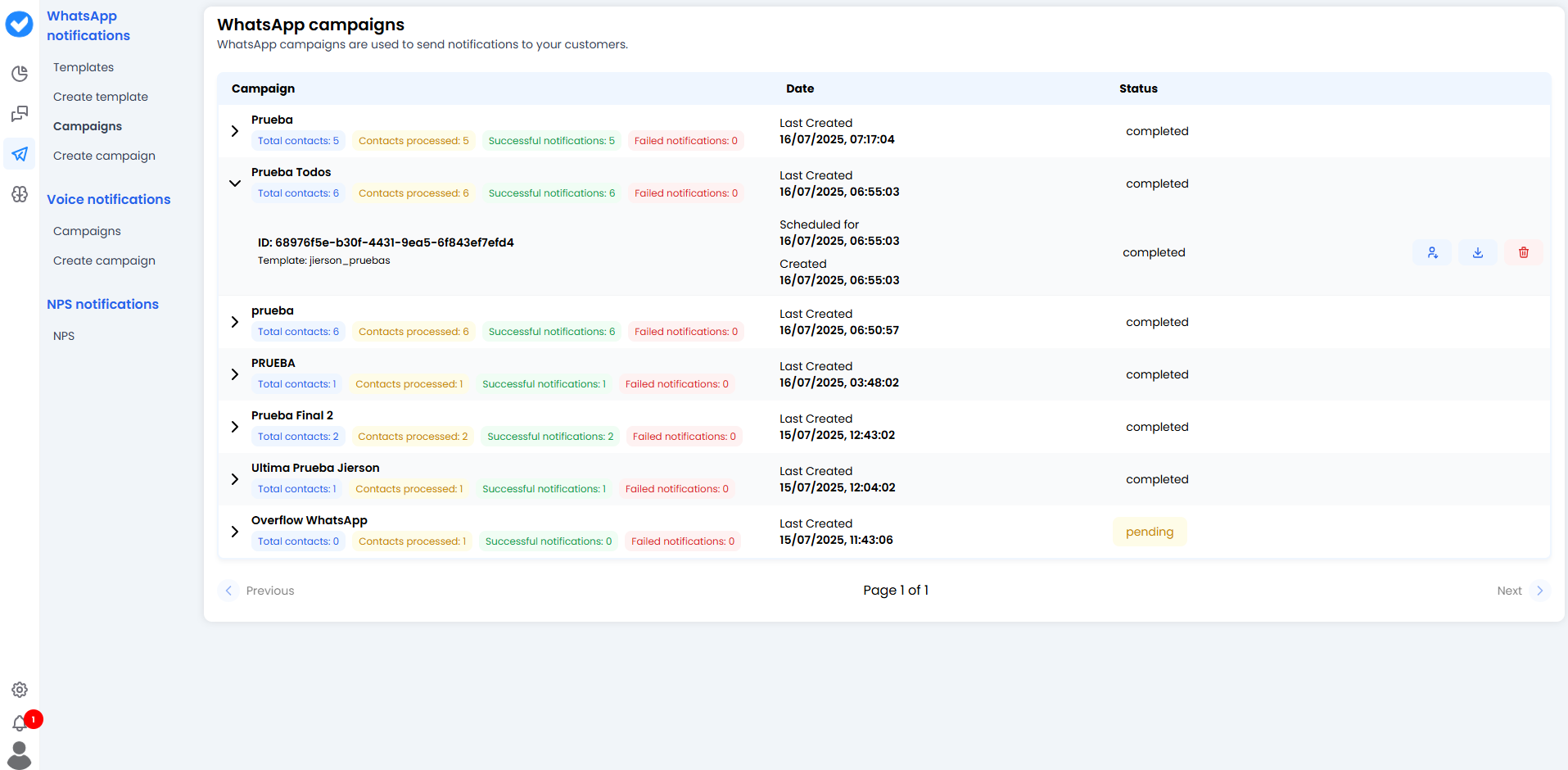
- Date: When it was sent (or when it is scheduled to be sent).
-
Template: Which template was used (e.g.
promo_black_friday). -
Status:
- ✅ Completed: Everything has been sent.
- ⏳ Pending: It is in the queue or scheduled for the future.
🚦 The Traffic Light of Results (Metrics)
The most important part is the colour-coded figures. They show the health of your campaign at a glance:- 🔵 Total Contacts: How many people you attempted to send messages to.
- 🟡 Contacts Processed: How many the system has already processed.
- 🟢 Successful Notifications: The key metric. How many messages were successfully delivered to WhatsApp’s servers.
-
🔴 Failed Notifications: Messages that did not go through.
- Why do they fail? The number may not have WhatsApp, the user may have blocked you, or Meta may have restricted your template.
🛠️ Available Actions
On the right of each execution you have three handy buttons:- 📥 Download Report: A full report for Excel lovers.
- 👥 Download Contacts: Download the exact list of people targeted in this campaign. Useful for retrying only the failed ones in a new campaign.
- 🗑️ Delete Campaign: Delete the record. (Be careful — this removes the results history, so make sure you don’t need it for audits.)
🎓 Best Practice Summary
- Watch the Reds (Failed): If you have too many failures (more than 5%), stop the campaign. Your database may be dirty (invalid numbers) or outdated. Meta penalises high failure rates.
- Clean-up: Use the “Download Contacts” button from a successful campaign to build “Active Users” segments for the future.
- Consistent naming: If you always call your campaigns “Test 1”, “Test 2”, you’ll end up with a messy list. Use names like
Newsletter_Januaryso the automatic grouping works in your favour.