
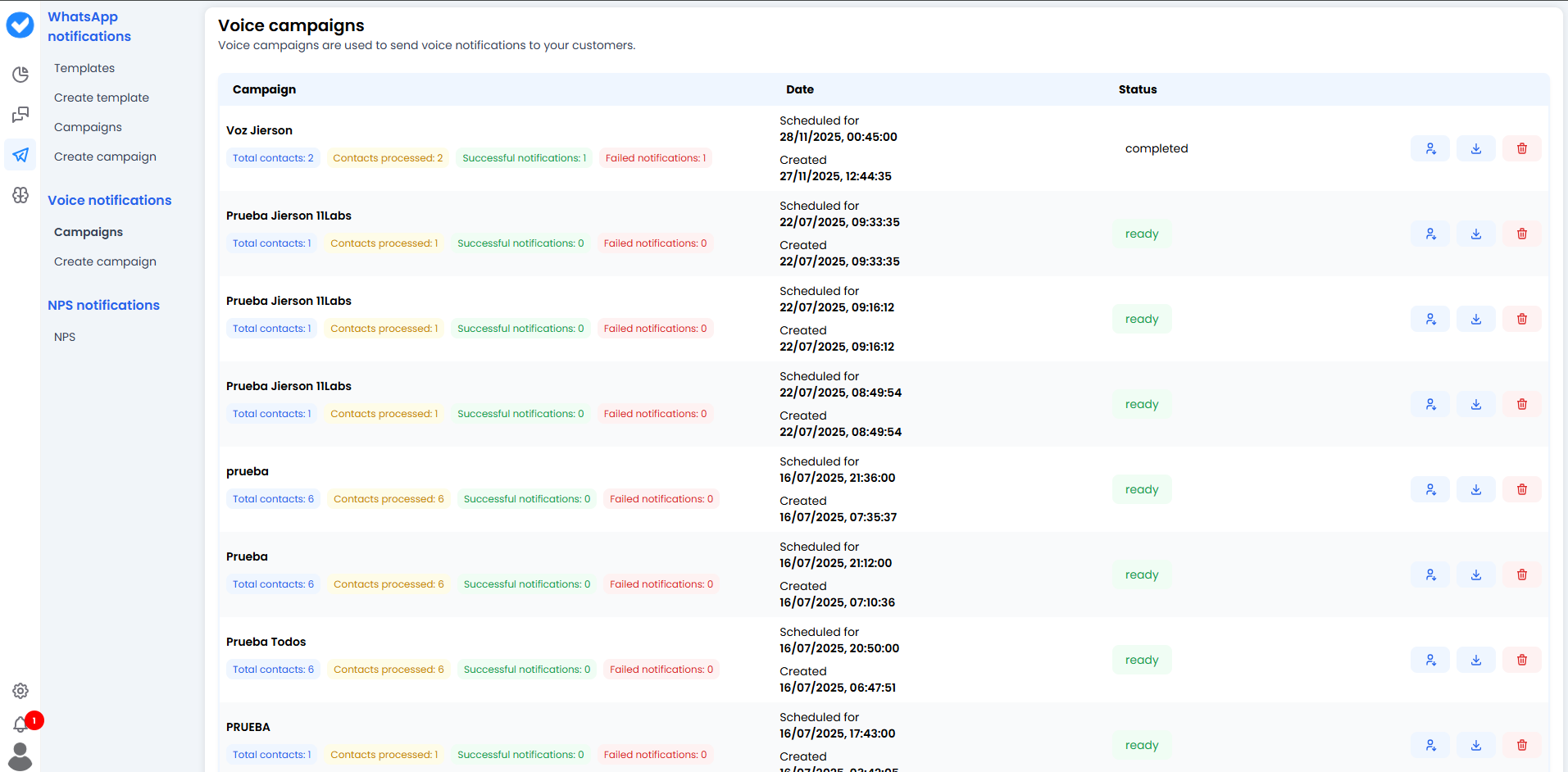
🗂️ Your Call Dashboard (Overview)
Just like in WhatsApp, here you’ll see a list of all your phone missions.- Smart grouping: If you launched the campaign “January Collections” three times, the system will try to group them under the same name. Click the arrow (>) to see the details.
-
Key dates: Pay attention to the Date column.
- Created: When you designed it.
- Scheduled for: When it is scheduled to start ringing.
🚦 Call Status (The Traffic Light)
In the right-hand column you’ll see the current status of your bot army:- 🟢 Ready: The campaign is loaded, the numbers are ready, and the bot is on the starting line waiting for the scheduled time (
Scheduled for). - 🏁 Completed: All calls have been made. The job is done.
- ⏳ Running / In Progress: (If you catch it live) The system is dialling numbers right now.
📊 Metrics (The Colour Tags)
Below each campaign you’ll see some small but vital labels:- 🔵 Total contacts: How many people were in your list (CSV).
- 🟡 Contacts processed: How many attempts have already been made.
- 🟢 Successful notifications: Success! The system managed to connect the call (note: connecting doesn’t always mean the customer accepted the offer, just that the bot was able to speak).
- 🔴 Failed notifications: A technical error. Busy line, invalid number, or a carrier failure.
🛠️ Actions (Blue and Red Buttons)
On the right of each row you have the management toolkit:- 👤 Person icon (Report): Download a detailed report. How long did each call last? Who hung up after 3 seconds?
- 📥 Arrow icon (Download Contacts): Download the original or processed CSV. Useful if you want to take only the failed ones and try again in another campaign.
- 🗑️ Bin icon (Delete): Remove the campaign from the history.
🎓 Best Practice Summary (Cheat Sheet)
- Watch the timing ⏰: Voice campaigns are intrusive. If your status is Ready and the scheduled time is 3:00 AM, cancel or delete it quickly! Nobody wants a robot waking them up in the middle of the night.
- Keep an eye on “Failed”: If you see many red failures in Voice campaigns, it’s often because your database contains landline numbers that don’t support certain types of traffic, or numbers that are incorrectly formatted.
- Live monitoring: If you launch a large campaign (1,000+ calls), keep an eye on this panel during the first few minutes. If you see too many errors, you can step in.