
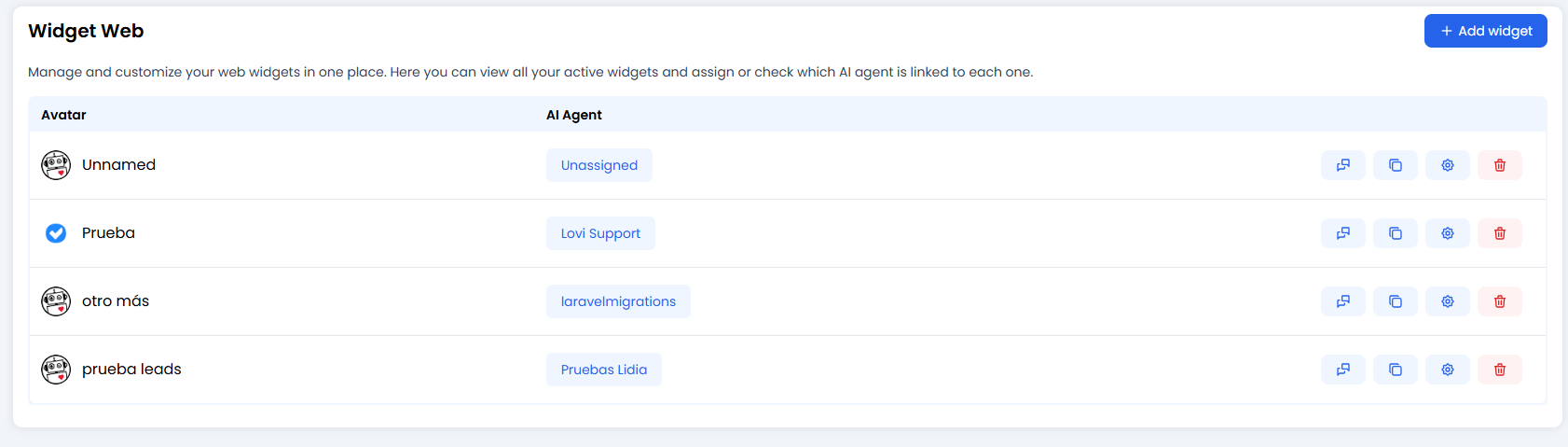
🎛️ Overview of Your Widgets
This is your widget command centre. Here you can see every chat bubble you’ve created.- Why have more than one? You might want a “Sales Bot” for your pricing page and a “Tech Support” bot for your help centre. Here you manage them all.
- Key Actions per Widget:
- 📋 Copy Script: Grab the magic code to paste onto your website.
- ⚙️ Configure: The fun part. Tweak colours, messages, and behaviour (we’ll get to this in a mo).
- 🗑️ Delete: Bin it if you don’t need it.
How to embed (chat)
Paste this before</body>. Do not set mode="voice" (that loads the voice widget).
language="en". The loader reads language-lovi. If you omit it, it uses navigator.language (first two letters; un → en).
Loader order:
mode="voice" → WhatsApp full → chat.
The url attribute on <script> does nothing. Config is cached 24 hours in localStorage under the widget id.
URLs
- Loader:
https://widget.lovi.ai/iawidget.js - Chat iframe:
https://widget.lovi.ai(optional?showClose=falseand/orlang={language-lovi}) - Config:
GET https://cloud.lovi.ai/functions/v1/widget?access_key=…&id_widget=…&language=…(the script adds the key; do not put it in screenshots) - Messages inside the iframe:
…/functions/v1/widget/{user,chat,messages,…}— session internals, not a public embed API
voice-widget or ?mode=voice on this page.
The loader creates #app-chatbot on the host. Chat runs in iframe #app-chatbot-iframe (allow="fullscreen; autoplay; encrypted-media; picture-in-picture" — no microphone). Handshake is postMessage (get_widget, get_customer, data_collection, save_customer, close, reset, new_message).
Desktop window: 450px × 85vh (max 824px), bottom/right: 10px (or left if floating_position is "left"). Viewport max-width 650px (and max-height 650px): iframe is already 100% of the viewport (border-radius: 0). That is not the config “Full screen” toggle. Config is_fullscreen + element_dom embeds in a node; showClose="false" covers the whole page on any viewport. Launcher: bottom: 10px; right: 20px.
WhatsApp (two paths)
- Script:
whatsapp_type="full"and a non-emptywhatsapp_number→ chat does not load; only a button tohttps://wa.me/{number}. - Widget config:
whatsapp_type == trueand a number, only ifinnerWidth ≤ 650→ replaces the chat bubble on mobile.
mode="voice", voice wins over WhatsApp full.
Host allowlist (CSP / firewall)
widget.lovi.ai and cloud.lovi.ai. The widget does not send a Content-Security-Policy header.
🎨 Customising Your Widget (The Art Class)
Click on the gear icon ⚙️ to enter the configuration lab. Let’s make this widget truly yours.1. The Basics
- AI Agent: Which brain is powering this chat? Select one of your agents from the list.
- Languages: Does your site speak English, Spanish, and French? Tell the widget so it doesn’t look silly.
2. Floating Message (The Hook 🪝)
Don’t let your bot hide! Set a catchy message that pops up above the icon.- Boring: “Chat here.”
- Better: “Hi there! Need help with your order? 👋”
⚠️ Heads up: Add translations for all your languages. You don’t want Spanish visitors seeing a blank bubble!
3. Look & Feel (Dress to Impress)
- Header: Choose what shows at the top. Just a title? Your logo? An avatar of a robot wearing a monocle? It’s up to you.
- Colours: Use the eyedropper tool 🖊️ to match your brand exactly.
- Main Colour: The message bubbles and send button.
- Text Colour: Make sure it’s readable! Yellow text on a white background is a crime against eyesight.
4. The Gatekeeper: Data Collection Forms 📝
Do you want to know who you’re talking to before they start chatting? Enable the Form.- Ask for Name, Email, or Phone.
- Make fields “Required” if you’re strict, or “Optional” if you’re chill.
- GDPR / Privacy: Add a link to your policy so you stay legal. 👮♂️
5. Smart Data Collection (Advanced 🤓)
For each key in the widget config, the loader readslocalStorage or sessionStorage or a JS cookie, or (if source === "js_global") a window variable by dotted path. It always sends url: location.href. The output name is optional. Those values are injected into message context; the widget does not automatically greet “Hello, John” unless your agent prompt does.
🛠️ Extra Tweaks & Layout
Fine-tune the experience:- Position: Left or Right? (Right is standard, Left is for rebels).
- Full Screen (config): Together with
element_dom, this embeds the chat in a page node. It is not “mobile full bleed” — atmax-width: 650pxthe iframe is already full viewport. - Embed (
dom): HTML element id of a node on the page (not#id/.class). If the node is missing, there is no embed. - Custom CSS: Injected as a
<style>tag in the iframe and on the host (#app-chatbot) without encapsulation, so host rules can affect the page. Iframe selectors:.widget_chat,.widget_chat_window, … Host launcher:.widget_chat_switch,.widget_chat_switch_open,#app-chatbot-iframe.
🎨 Custom CSS — The Designer’s Guide
Are the preset colours and options too limiting? The Custom CSS field gives you full control over the widget’s look. Here you can write CSS rules that tweak styles, override default classes, or even add animations. Where to find it: Open the widget configuration (⚙️ icon), expand the “Custom CSS” section, and type your code in the text area.⚙️ How it works under the hood
What you write here isn’t magic — it’s quite predictable once you get it:- Your CSS is saved alongside the widget configuration.
- When the widget loads, your CSS is injected twice: a
<style>tag inside the chat iframe (scoped to the chat) and a<style>tag on the host (#app-chatbot) with no encapsulation (it can affect the rest of the page). - Iframe rules load after default iframe styles, so they usually win ties there. Host selectors (
.widget_chat_switch,#app-chatbot-iframe) style the launcher on your page.
🎯 Scope: Chat-window classes (.widget_chat,.widget_chat_window, …) apply inside the iframe. Launcher rules on the host are not isolated from your site CSS.
💪 My rule isn’t applying? Because our base styles are specific, sometimes your rule “ties” and doesn’t win. If a change has no effect, add!importantto the end of the property (e.g.border-radius: 0 !important;) or use a more specific selector.
🧩 Selectors you can use
These are the real “tags” of the widget’s parts. Target them with your CSS:💡 Practical examples
Squarer bot bubbles with a shadow:
🧪 Always test it in the Playground (see below) before publishing. A forgotten } can break several styles at once.
🧪 Test Drive (Playground)
Before you paste the code on your live site, give it a whirl in the Playground.- Does the colour clash?
- Is the Agent being polite?
- Does the form work?