
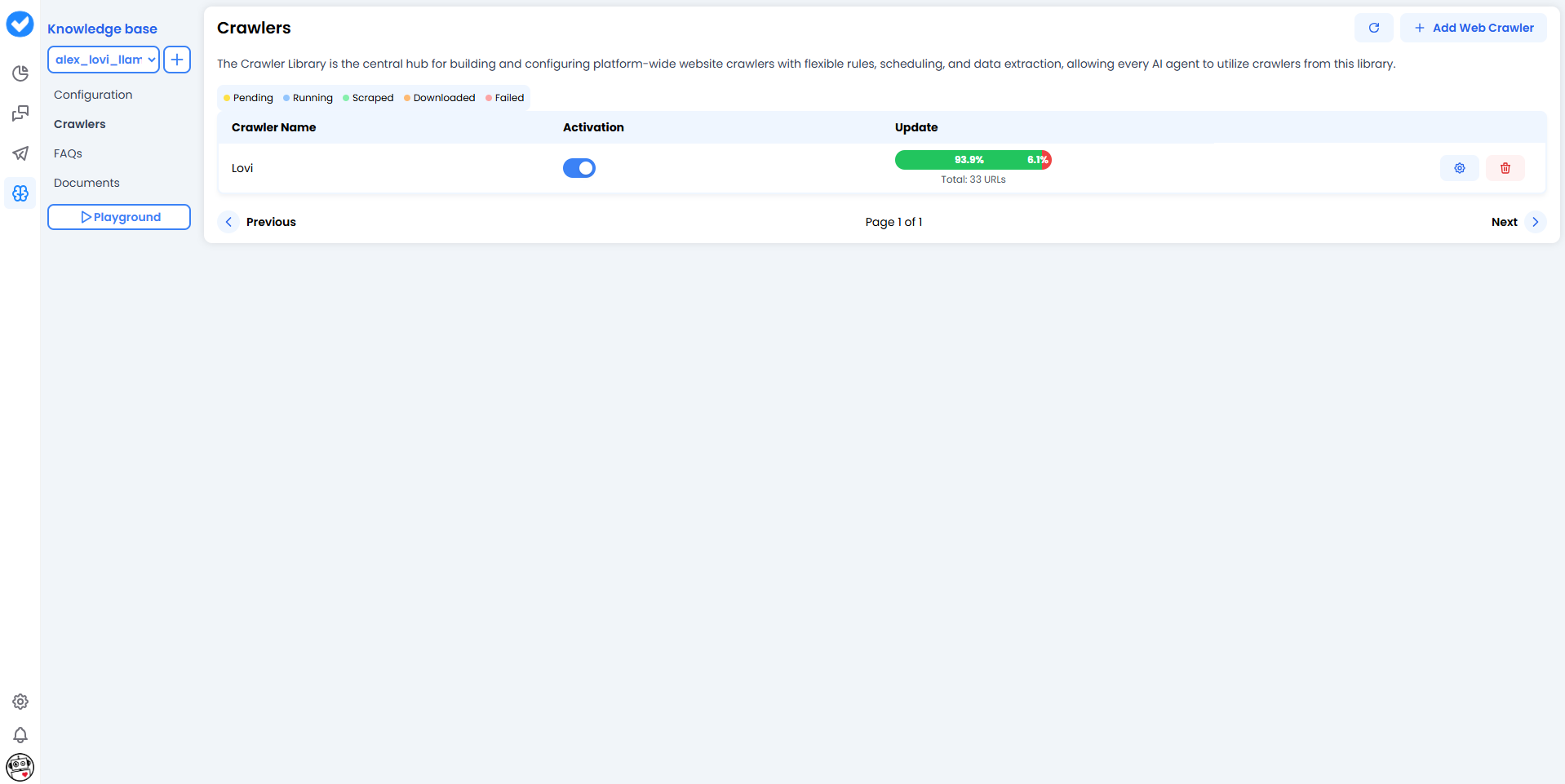
🎯 What is this for?
- Keep it up to date: If you change a price on your website, the crawler will detect it on its next run.
- Huge knowledge base: Ideal if you have hundreds of help articles or product pages.
- Verification: Allows the agent to cite real sources (“According to our website…”).
🛠️ Configuring a Crawler (Step by Step)
When you click + Add Web Crawler, you’ll see the configuration screen. Think of it as the mission map for your crawler.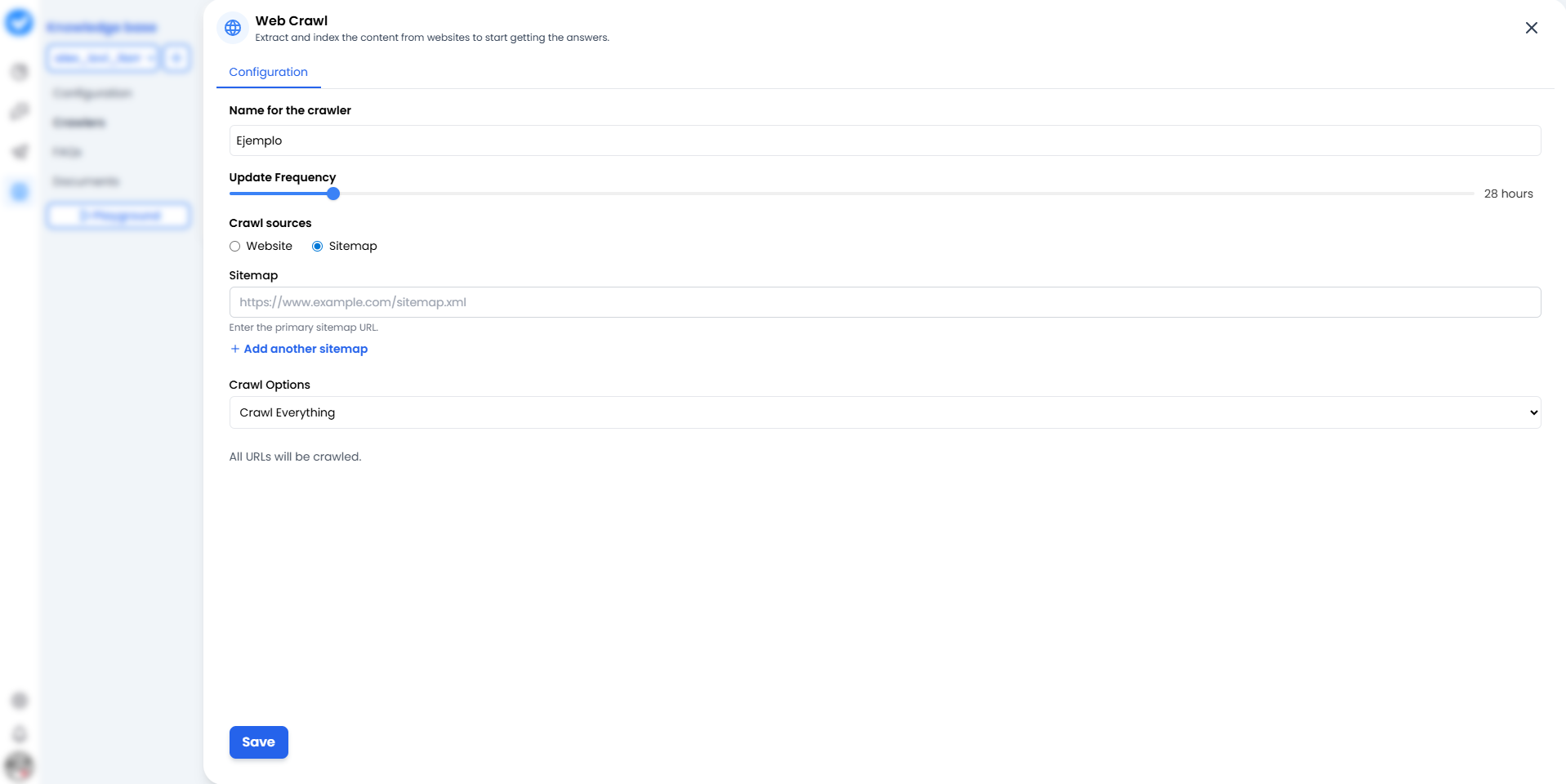
1. Name for the crawler
Give it a name that clearly identifies the source.- Bad: “Test 1”.
- Good:
Official_Support_HelporBlog_Updates_2024.
2. Update Frequency (The Rhythm)
How often should it reread the website? Use the slider.- 24 hours: The standard option. Checks for changes once a day.
- More frequent: Use only for breaking news (it consumes more resources).
3. Crawl sources (The Strategy)
Here you decide how the bot enters your house:- 🌐 Website: The bot starts from the homepage and follows links one by one (like a curious human). Good for discovering content.
- 🗺️ Sitemaps (New & Improved!): You give it an exact map (
sitemap.xml). The best part? You are no longer limited to just one. You can click + Add another sitemap to feed the bot multiple maps at once. You can also use the Check Sitemaps button to verify they are working properly before launching. Faster, cleaner, and much more efficient.
4. Crawl Options (The Scope)
- Crawl Everything: It will read everything it finds.
- Sub-paths: You can restrict it to
/blogor/productsso it doesn’t waste time on the “About us” page.
⚠️ Important: Make sure your website does not block bots (check your robots.txt). If you shut the door, it won’t be able to learn!
📄 Managing your Knowledge (The “Pages” Tab)
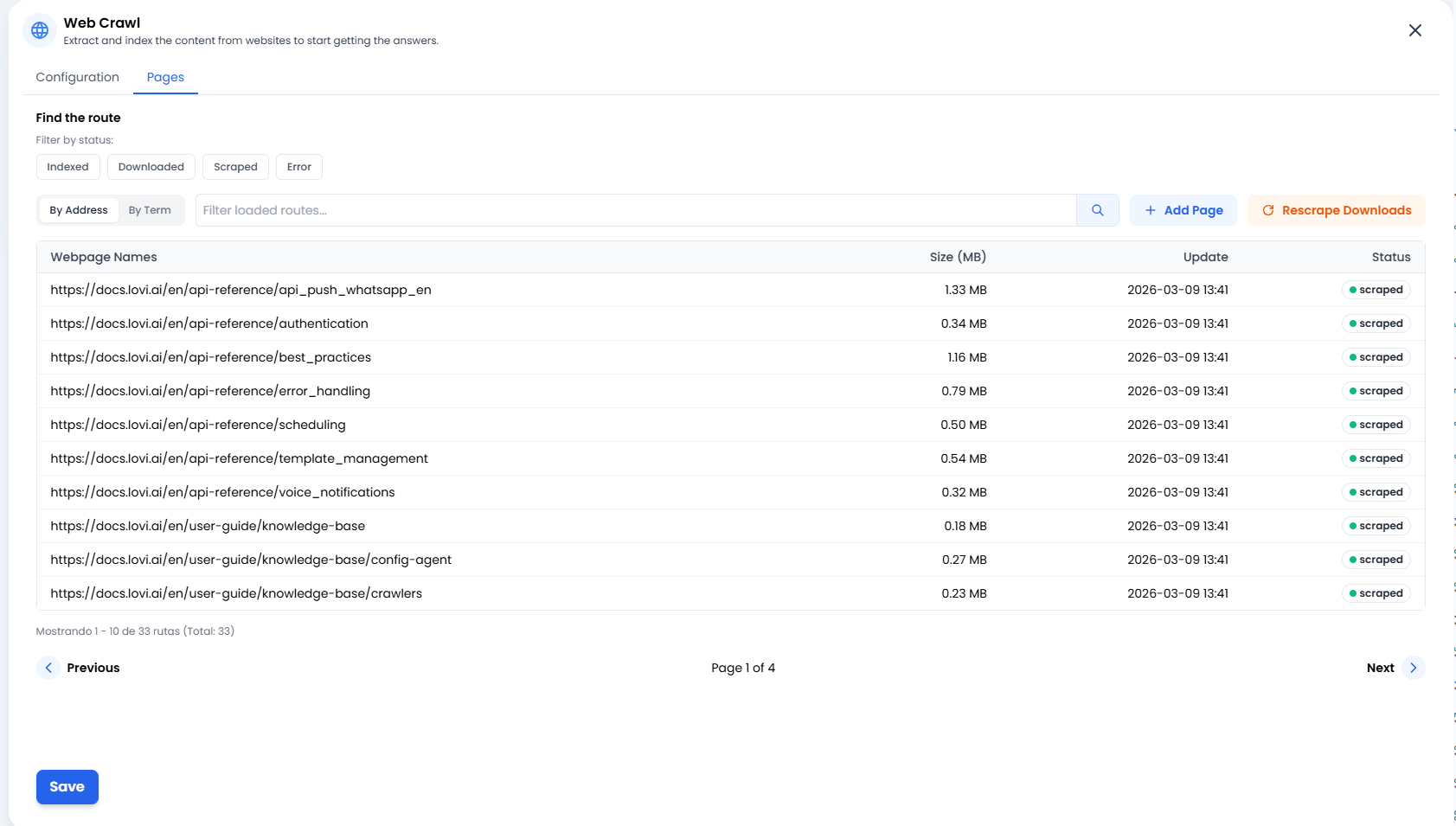
➕ Add Page (Surgical Precision)
Sometimes you don’t need to crawl a whole website or an entire sitemap. If you have just published a single new blog post or an external article you want the bot to learn right now, simply click + Add Page. This allows you to manually inject specific URLs straight into the bot’s brain.🔄 Rescrape Downloads (The Second Chance)
Did a website connection glitch out? Or maybe you updated the text on your website and want the bot to learn it immediately without waiting for the next scheduled cycle? Click the Rescrape Downloads button. This tells the system: “Take all the documents we’ve already downloaded and try to extract their information again.” It’s the perfect refresh button.📊 Status Traffic Lights (What’s happening?)
In the Pages list, you’ll see the exact status of every single URL. Here’s what they mean:- 🟢 Scraped / Indexed: Success! ✅ The content has been read, processed and is now safely stored in the agent’s brain.
- 🟠 Downloaded: The page has been downloaded but not yet processed (it’s still “digesting” the information).
- 🔴 Error: Something went wrong. The website might be down, require a login, or has an anti-bot firewall blocking the way.
🎓 Best Practices Summary (Cheat Sheet)
To keep a clean and useful knowledge library:- Multiple Sitemaps are your best friend: Instead of crawling a massive website, provide specific sitemaps (e.g.,
sitemap-products.xmlandsitemap-blog.xml). It keeps the bot focused. - Avoid junk pages: You don’t need to index “Shopping Cart”, “Login” or “Legal Notice”.
- Clear naming: When you have 10 crawlers, you’ll be glad you named them
FAQ_ESandFAQ_ENinstead ofweb1andweb2. - Surgical additions: Use the + Add Page button for quick updates instead of forcing a full crawl of your site.
🆘 Quick Troubleshooting
| Problem | Likely Fix 🔧 |
|---|---|
| Status says “Error” 🔴 | Your website might be blocking bots. Check your firewall settings. If it was a temporary glitch, try hitting Rescrape Downloads. |
| Reads too many pages | Switch to the Sitemap option or restrict the Sub-paths so it only reads what matters. |
| Information not updating | Check the “Update Frequency” slider. It might be set to “Monthly” when you need “Daily”. |
| The agent mixes data | Do you have two crawlers reading the same content? Remove duplicates. |